The Autel MaxiScope MP608 is a portable 4-channel automotive oscilloscope designed to work with compatible Autel MaxiSys tablets for waveform testing and electrical signal diagnosis. It connects through USB and supports functions such as 12-bit vertical resolution, one-click setup, CAN FD, and FlexRay testing.
This guide explains how to connect the Autel MP608, open the MaxiScope application, perform software updates, and troubleshoot common connection or waveform issues for first-time users.
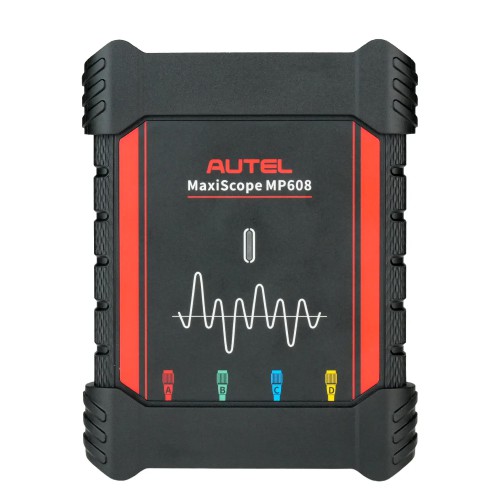
Getting Started with MaxiScope MP608
Connect MP608 & Start Testing
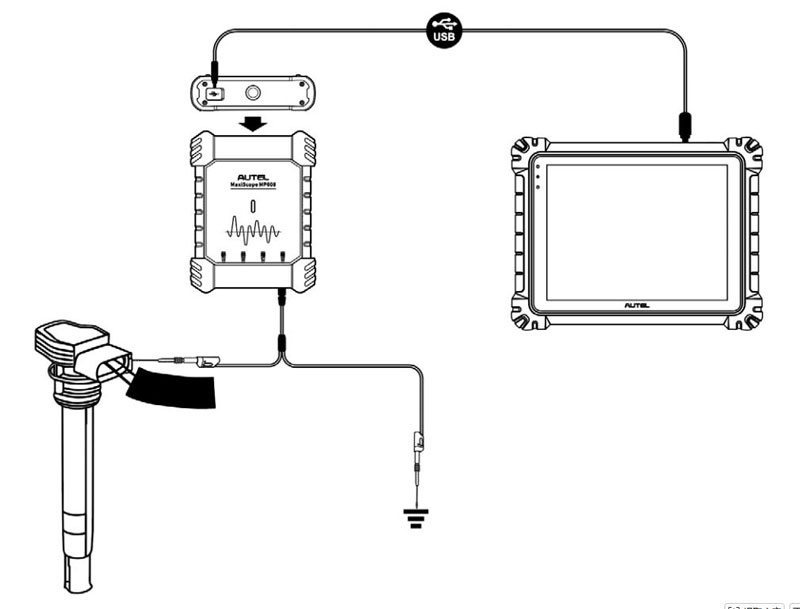
Before opening the MaxiScope application, connect the MP608 to a supported Autel MaxiSys tablet using the USB 2.0 Cable V2.
Compatible Autel next-generation MaxiSys tablets include:
- MaxiSys MS909S2
- MaxiSys MS909
- MaxiSys MS909EV
- MaxiSys MS909CV
- MaxiSys Ultra ADAS
- MaxiSys MS908S3
- MaxiSys MS906 MAX
- MaxiSys MS908S II
- MaxiSys MS908S Pro II
- MaxiSys MS906 Pro
- MaxiSys MS906 Pro-TS
- MaxiSys MS906 Pro2-TS
- MaxiCOM MK908 PRO II
Additional MaxiSys tablets may be supported through future software updates.
To start testing:
- Insert the applicable test lead or probe terminal ends into the required input channel(s).
- Tap the MaxiScope application on the MaxiSys tablet.
- Open the oscilloscope menu.
- Select the required testing option to continue.
Important: Use only the included cords and probes. Using unauthorized accessories may cause unexpected damage to the tool.
Enter Demo Mode When MP608 Is Not Connected
If the MP608 is not connected to a compatible MaxiSys tablet when opening the oscilloscope menu, a message will appear:
“You can connect MP608 immediately or enter demo mode, do you want to enter demo mode?”
Select the required option:
- Tap OK to enter demo mode.
- Tap Cancel to exit.
Update MaxiScope APK Software
The operating software of the oscilloscope can be updated through the MaxiScope application.
Before updating:
Ensure the MaxiSys tablet has a stable Internet connection.
To update the APK:
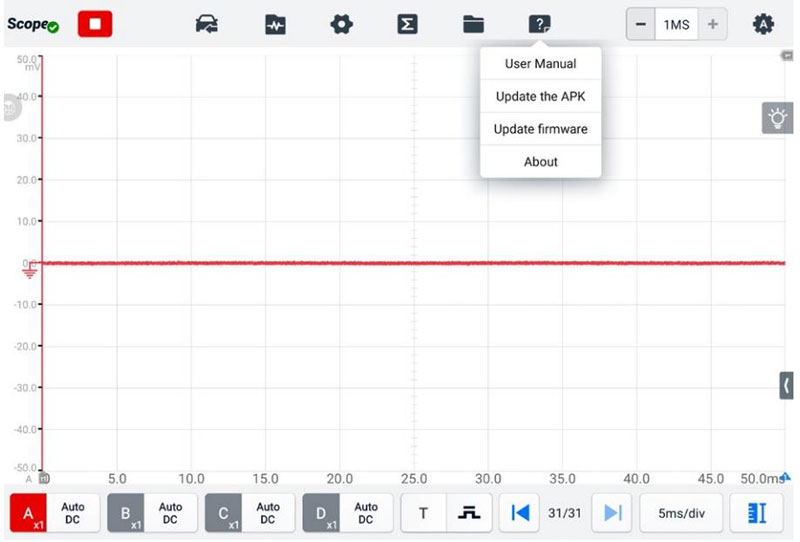
- Tap the Help button on the upper toolbar.
- Select Update the APK from the dropdown menu.
- Confirm the update message.
- Tap OK to update the software or tap Cancel to exit.
Note: APK (Android Package Kit) is the application package file used on Android devices. Updating an APK installs the latest version of the application on the tablet.
Update MP608 Firmware
To update the MP608 firmware:
- Tap the Help button on the upper toolbar.
- Select Update Firmware from the dropdown list.
- The MP608 firmware will update automatically.
Notes:
- Disconnect the MP608 before updating.
- Do not leave the update page during the upgrade process.
Indicators / Buttons / Hardware
| Component | Description |
|---|---|
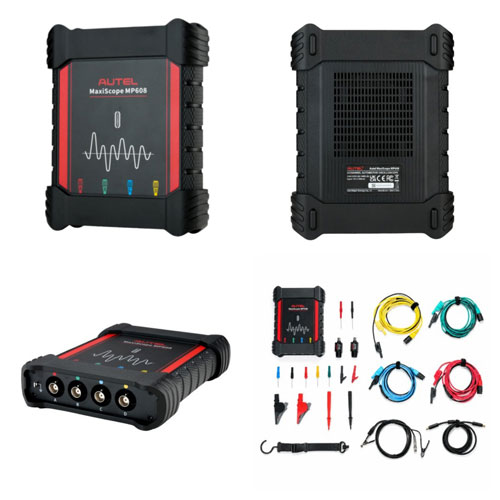
| USB Cable V2 | Connects the MP608 with a compatible MaxiSys tablet |
| Input Channels | Connect test leads or probe terminals for signal testing |
| Test Leads / Probes | Used for waveform measurement and circuit connection |
Troubleshooting
MP608 Cannot Communicate with MaxiSys Tablet
If the oscilloscope cannot communicate with the MaxiSys tablet:
- Ensure the MP608 is properly connected to the MaxiSys tablet using the supplied USB cable.
- Restart the MaxiSys tablet and reconnect the MP608 if communication continues to fail.
Waveform Signal Is Distorted or Contains Noise
If unwanted signals are displayed or waveform signals are distorted:
- Use only the supplied test leads or probes to connect with the input channels.
- Check the test leads or probes for damage.
- Ensure the polarity of the test lead connections is correct.
- Make sure the signal and ground connections are clean and secure.
- Ensure the ground lead provides a direct ground connection from the circuit to the input channel.
- Keep test leads away from components or systems that may introduce unwanted noise, including:
- Electric motors
- Secondary ignition components
- Relays
- Alternators
FAQ
Does Autel MaxiScope MP608 Work with Any Android Tablet?
No. The MaxiScope App only works with Autel Android tablets and is not supported on other Android tablet devices.
Which MaxiSys Tablets Are Compatible with Autel MaxiScope MP608?
The MP608 works with compatible Autel next-generation MaxiSys tablets, including MS909 series, MS908 series, MS906 series, and MaxiSys Ultra ADAS models listed in this guide.
How Do I Connect Autel MaxiScope MP608 for the First Time?
Connect the MP608 to a compatible MaxiSys tablet using the supplied USB cable, connect the test leads or probes, then open the MaxiScope application and select a testing option.
How Do I Update MaxiScope MP608 Software?
Update the application through:
Help → Update the APK
Update the MP608 firmware through:
Help → Update Firmware
What Should I Check Before Using MP608 for Waveform Testing?
Make sure the MP608 is connected correctly, use the supplied test leads or probes, and confirm that signal and ground connections are secure before starting waveform testing.
Technical Support
Email: sales@AutelShop.de
Wechat: +86-13429866263
Whatsapp: +86-13429866263
www.autelshop.de