To transfer screen recordings from an Autel or Otofix Scan Tool to a PC, connect the scanner via USB and select File Transfer. These steps apply to most tablets like Autel MK900BT, MK906Pro2-TS, and MK908Pro II. The OTOFIX D1 is used as an example below.
1. Connect the Scanner to the PC
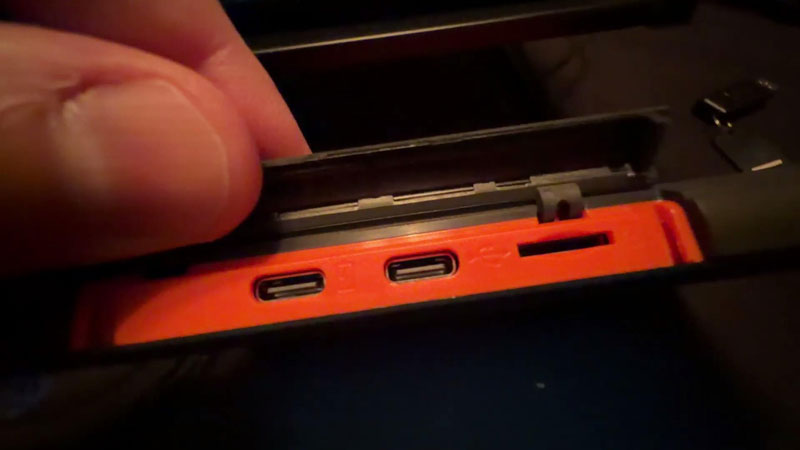
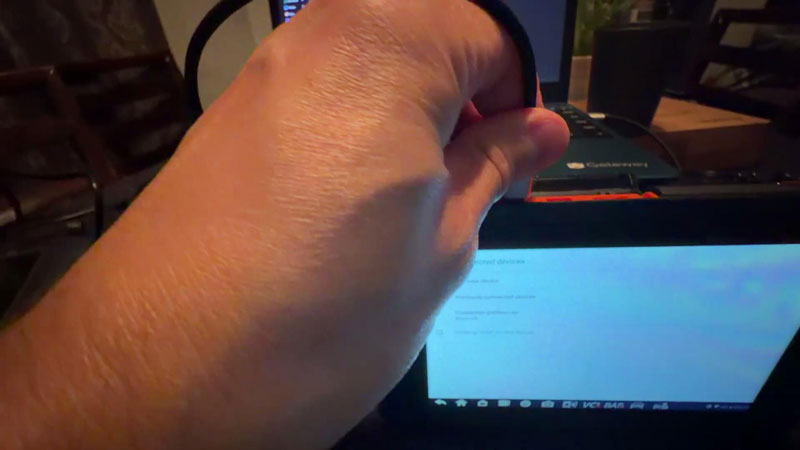
- Connect the D1 to your PC using the USB port.
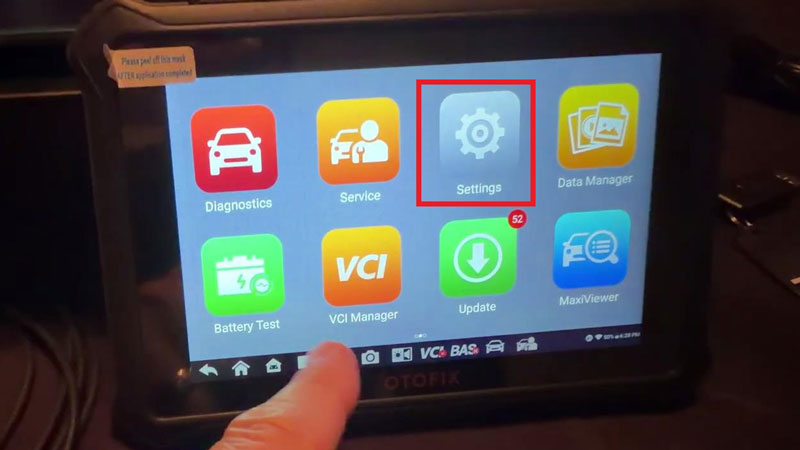
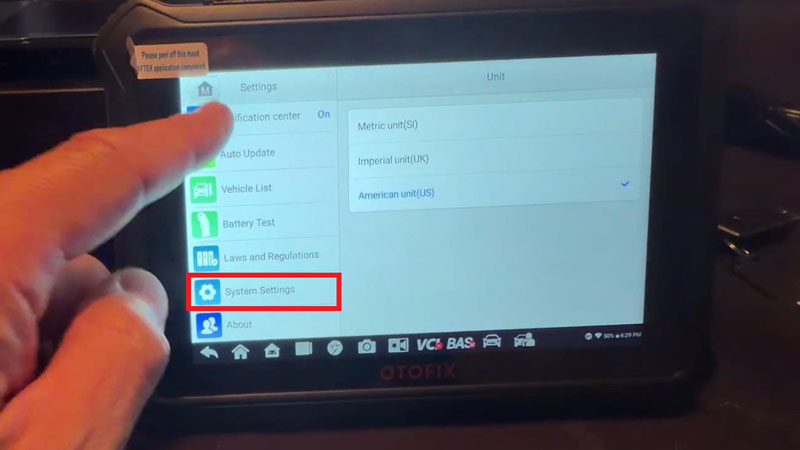
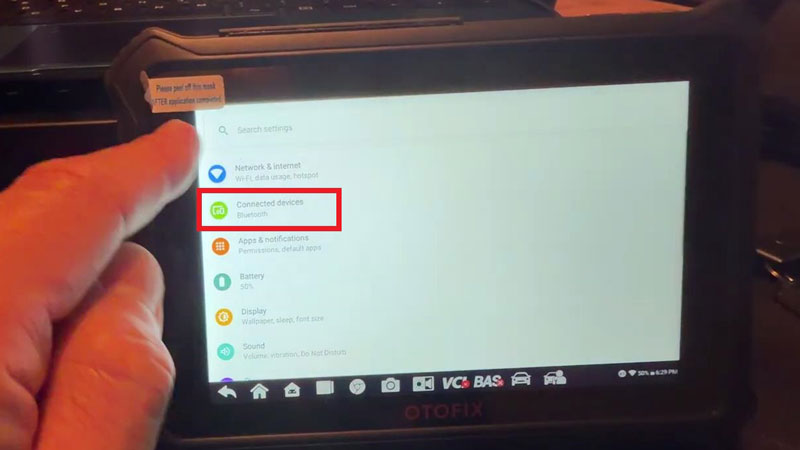
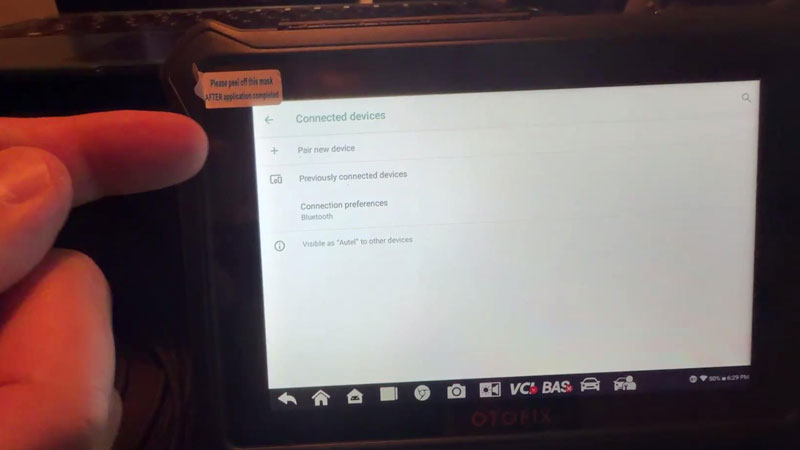
- On the scanner, go to: Settings >> System Settings >> Connected devices
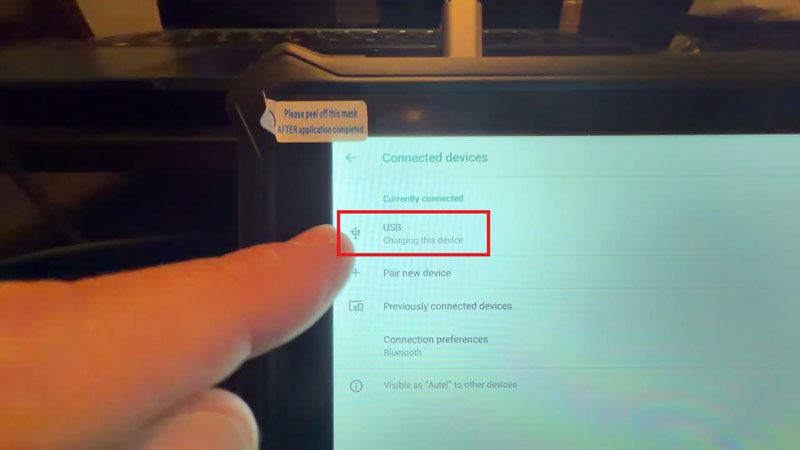
- Once the USB cable is connected, the PC should recognize the scanner, and a USB option will appear under Connected devices.
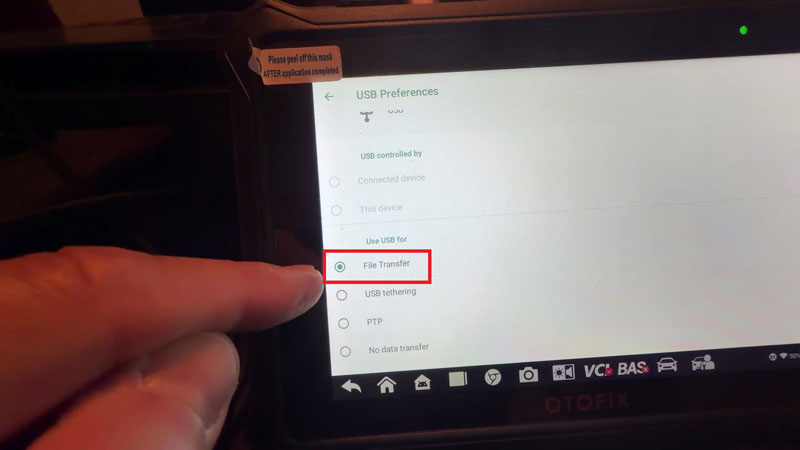
2. Select File Transfer
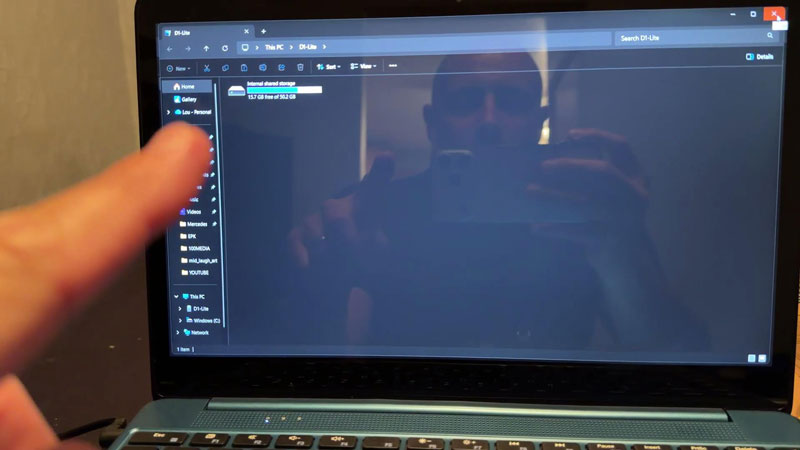
Tap the USB option on the scanner and select File Transfer. The scanner should now appear on your PC as a connected device.
3. Copy the Screen Recordings
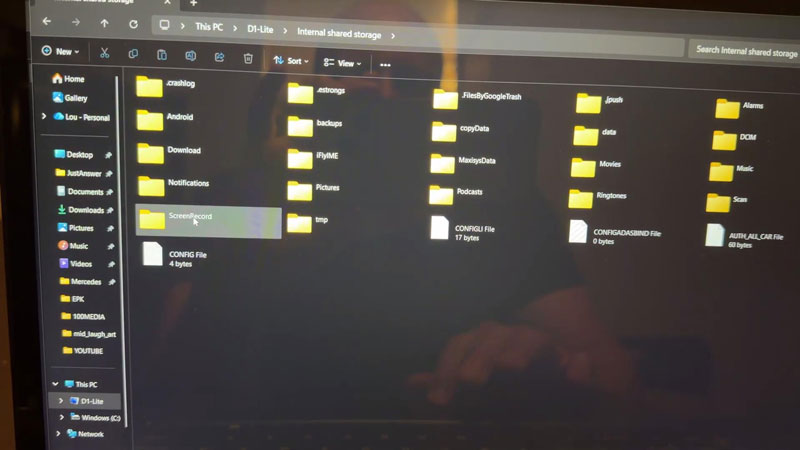
- Open the connected scanner on your PC and find the ScreenRecord folder.
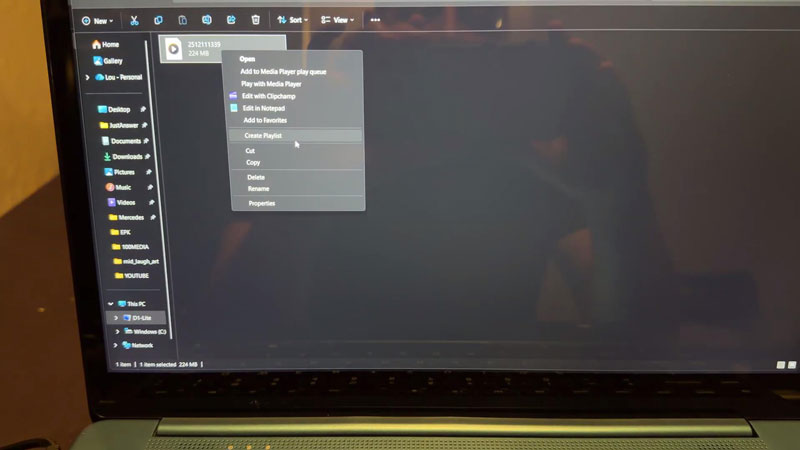
- Open the folder to locate your recordings, then copy or move the files to any folder on your PC.
- Check the Copied Files: Open a copied recording on your PC to make sure it plays correctly.
A quick tip: If you don’t see the USB option under Connected devices, check the cable connection. The USB entry only appears when the scanner is connected to the PC and disappears once you unplug it.
Technical Support
Email: sales@AutelShop.de
Wechat: +86-13429866263
Whatsapp: +86-13429866263
www.autelshop.de