This tutorial explains how to clear APK data and cache on Autel tablets commonly used with Automotive Diagnostic Systems, such as the Autel IM508S, MK900BT, MK908 PRO II and similar models. Clearing app data can help resolve various issues and improve device performance.
Common Reasons to Clear APK Data/Cache:
| Reason | What It Helps Fix |
| Malfunction/ Crashes | Corrupted files, bad cache |
| Wrong User Info | Clears saved credentials |
| Low Storage | Deletes heavy app data |
| Version Mismatch | Prevents old-new conflicts |
| App Behavior Bugs | Resets configurations/settings |
How to Clear APK Data & Cache:
- Locate the APK icon on your tablet’s home screen or app drawer.
- Long-press the APK icon and drag it to the top center of the screen.
- Select options such as “Clear Data,””Clear Cache,” or “Uninstall Updates.”

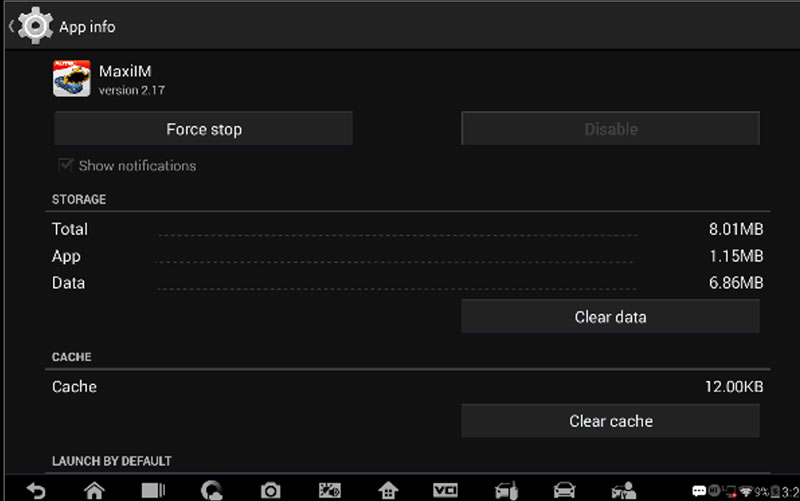
How to Clear Memory via System Settings:
- Go to Settings > Apps (or Applications).
- Tap the three dotsin the top-right corner and choose “Sort by size.”
- Find the main vehicle diagnostic software (usually listed at the top).
- Select the app and tap “Clear Data”to remove all cache and stored information.
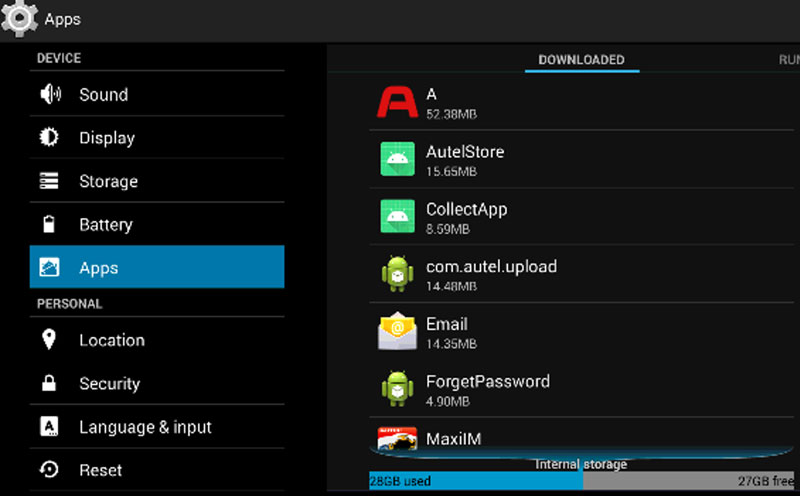


Following these steps can help troubleshoot common errors, free up storage, and restore stable operation of your Autel diagnostic tools.
Technical Support
Email: sales@AutelShop.de
Wechat: +86-13429866263
Whatsapp: +86-13429866263