This guide explains how to use the MaxiTools utility to upload system logs from your OTOFIX Tools Scanner (including D1, D1 Lite, D1 ProS2, D1 MAX2, IM1, etc.) for troubleshooting common issues like software download failures, Bluetooth or Wi-Fi connection problems, or app crashes.
Important Note
Upload logs immediately after the problem occurs for accurate troubleshooting.
Video Tutorial Available:
Step-by-Step Instructions
- Open MaxiTools
- Go to Utilities on your scanner.
- Select MaxiTools.
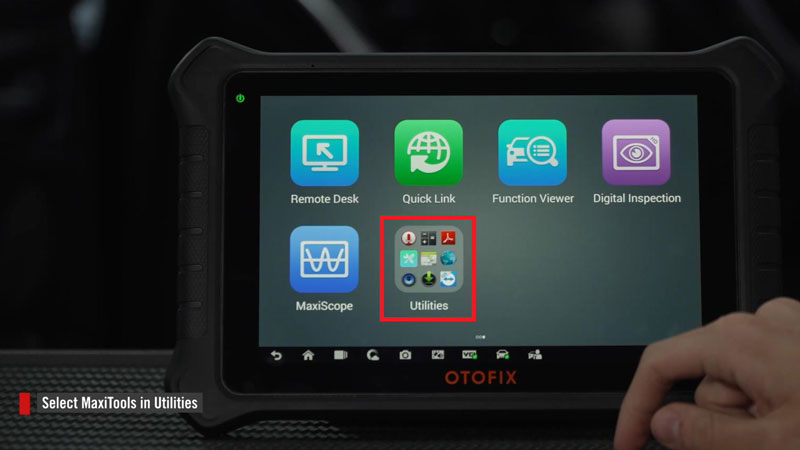
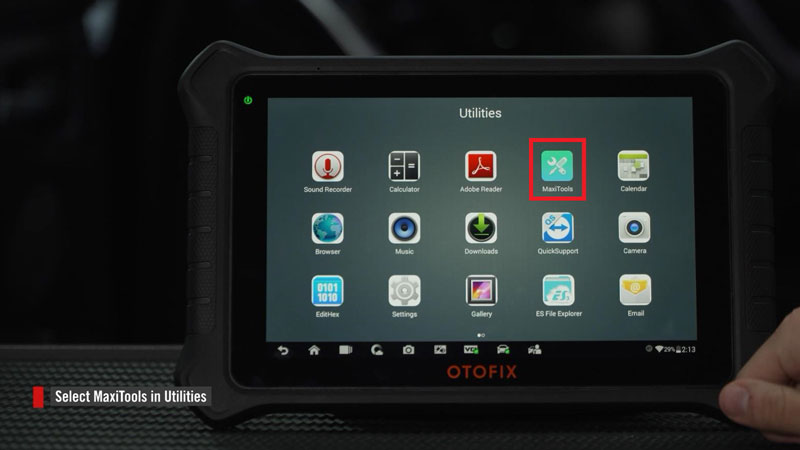
- Collect and Upload Logs
- Tap “Start”to begin system data collection.
- Once complete, tap “Upload”.
- Wait for the “Upload completed”
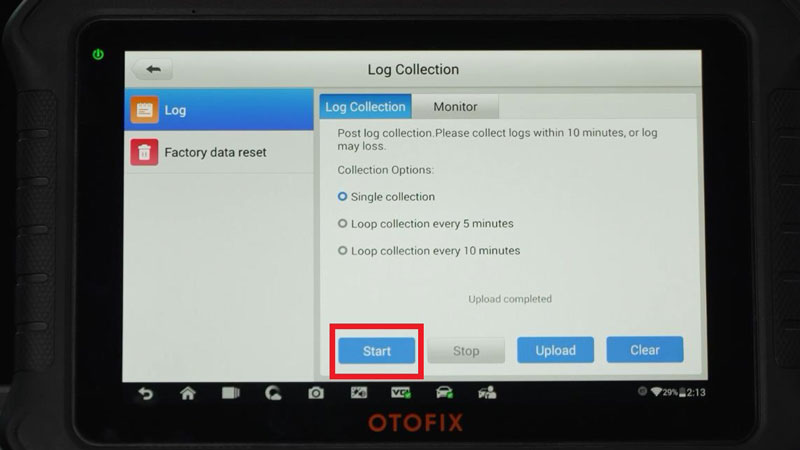
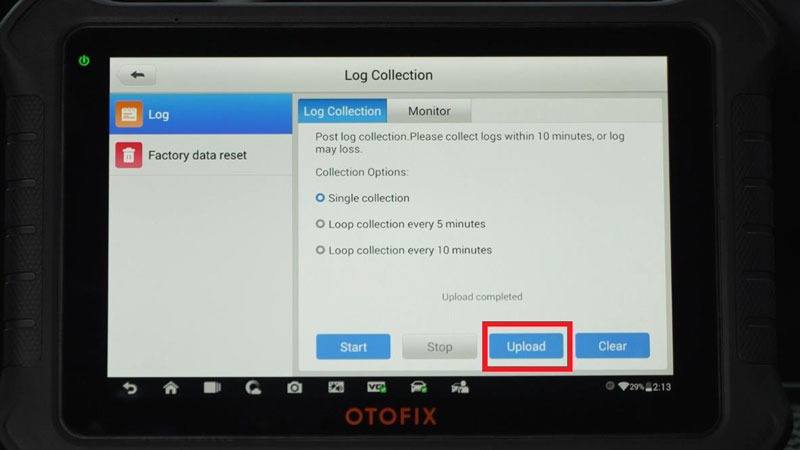
Related Tutorial
Need to upload vehicle-specific diagnostic logs? Learn how in our guide:
How to upload Diagnostic Data Logs on OTOFIX Scanner?
❓ Frequently Asked Questions
Q: When should I use MaxiTools vs. Diagnostic Data Logging?
A: Use MaxiTools for general system issues (Wi-Fi, software crashes). Use Diagnostic Data Logging for vehicle-specific diagnostic errors.
Q: How long does log upload take?
A: Usually a few seconds to a minute, depending on data size and connection.
Need Help? Contact Support
Email: sales@AutelShop.de
Wechat: +86-13429866263
Whatsapp: +86-13429866263
✅ Summary
Using MaxiTools to upload logs is straightforward: navigate to Utilities > MaxiTools, tap Start, then Upload. For best results, upload logs immediately after an issue occurs. If problems persist, reach out to our support team using the contact details above.